

browse CLI powers your agents to run UI testing, conduct deep document research, fill web forms, and complex browser automations.
npm install browse
One CLI for skills, browser primitives, debugging, and cloud sessions, designed to be driven by AI Agents.
1. Create an environment
Create an environment with thebrowse npm package installed. For open-web browser agents, set networking to unrestricted. Use limited networking when you want to scope the agent to specific websites.
- Anthropic Console
- CLI
- SDK
In the Anthropic Console, create a new Managed Agents environment. Add 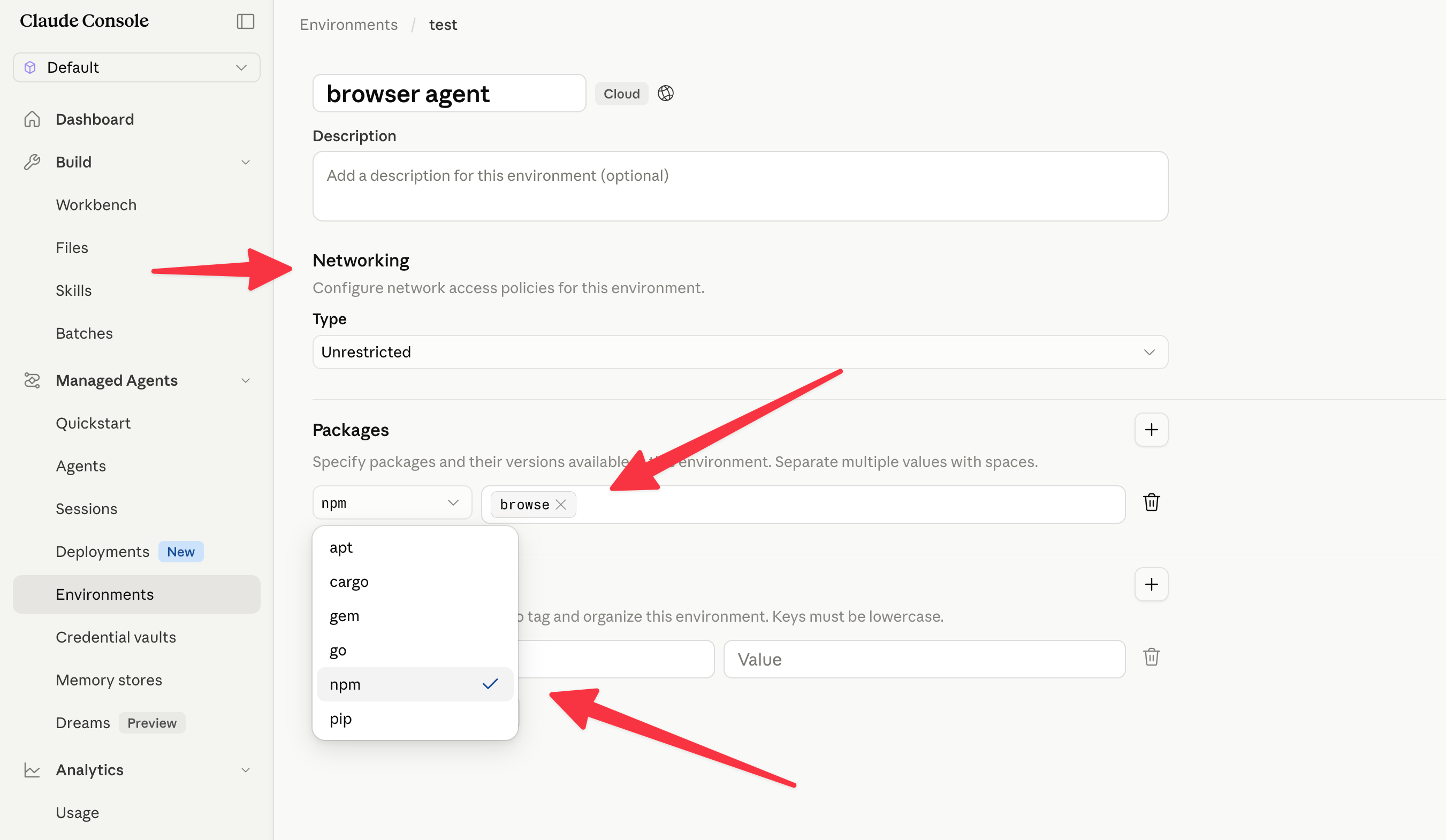
browse as a default npm package and set networking to Unrestricted.browse CLI is designed for agents to inspect and operate webpages. It exposes commands like browse click, browse snapshot, browse screenshot, and browse network, and can drive local Chromium, any CDP connection, or Browserbase cloud sessions.
2. Create a credential vault
Create a credential vault so the agent can securely read your Browserbase API key without hardcoding it in prompts.Choose the vault type
Create a vault that will hold an environment-variable credential.
- Anthropic Console
- CLI
- SDK
Choose Environment variable as the credential vault type.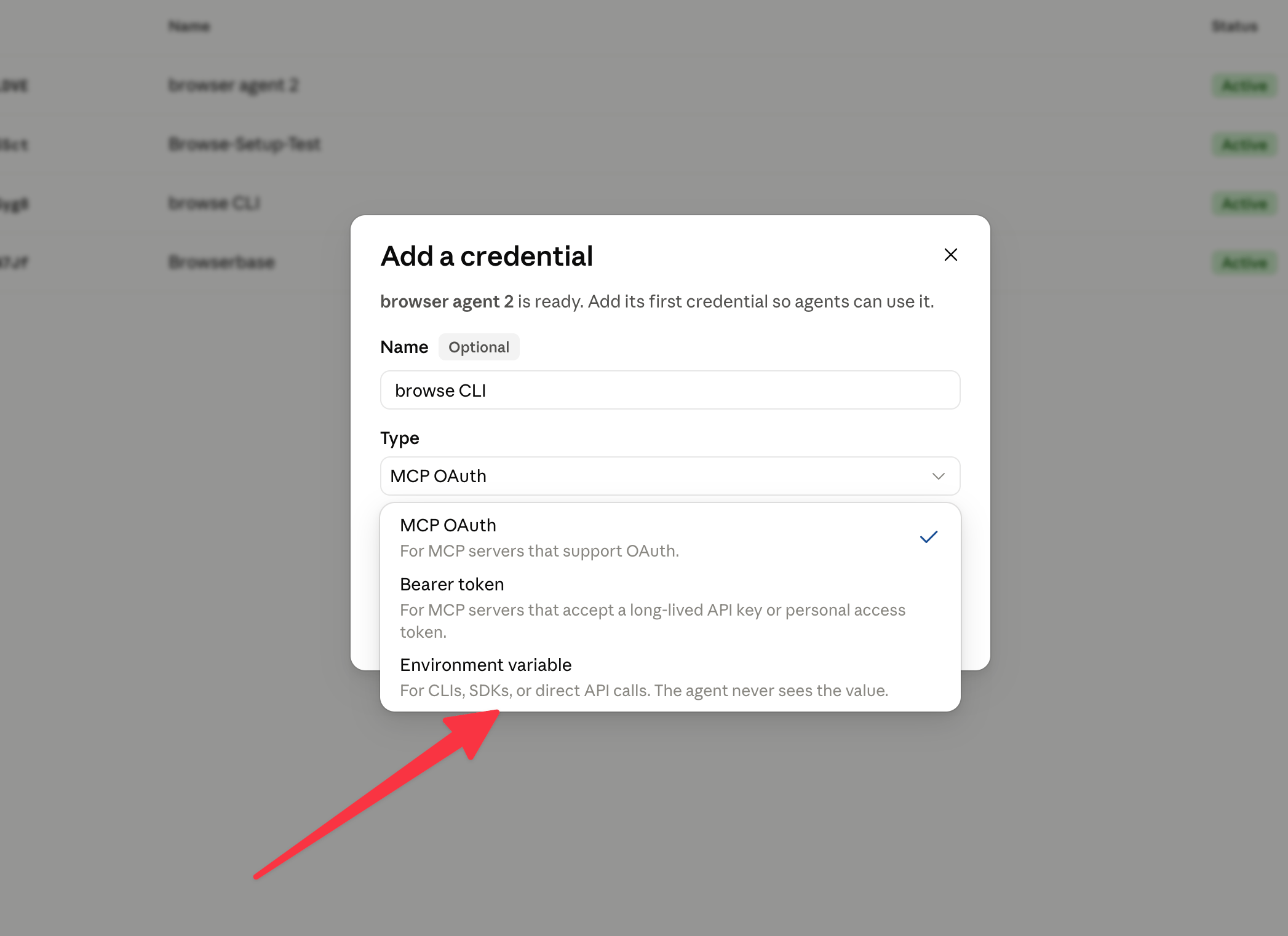
Add the Browserbase API key
Name the variable
BROWSERBASE_API_KEY and set its value to your Browserbase API key. Use limited networking with *.browserbase.com as the allowed host.- Anthropic Console
- CLI
- SDK
Add 
BROWSERBASE_API_KEY, paste your Browserbase API key, and choose Limited networking with *.browserbase.com.3. Create the agent
Create a Managed Agent that knowsbrowse is available in the environment. Keep the system prompt short and let the CLI provide command details through browse --help.
You can use this .yml to configure your agent. Optionally disable native
web_fetch and web_search to harness Browserbase’s Fetch and Search APIs via the browse CLI.- Anthropic Console
- CLI
- SDK
Configure the agent with the browser-agent system prompt and shell tool access.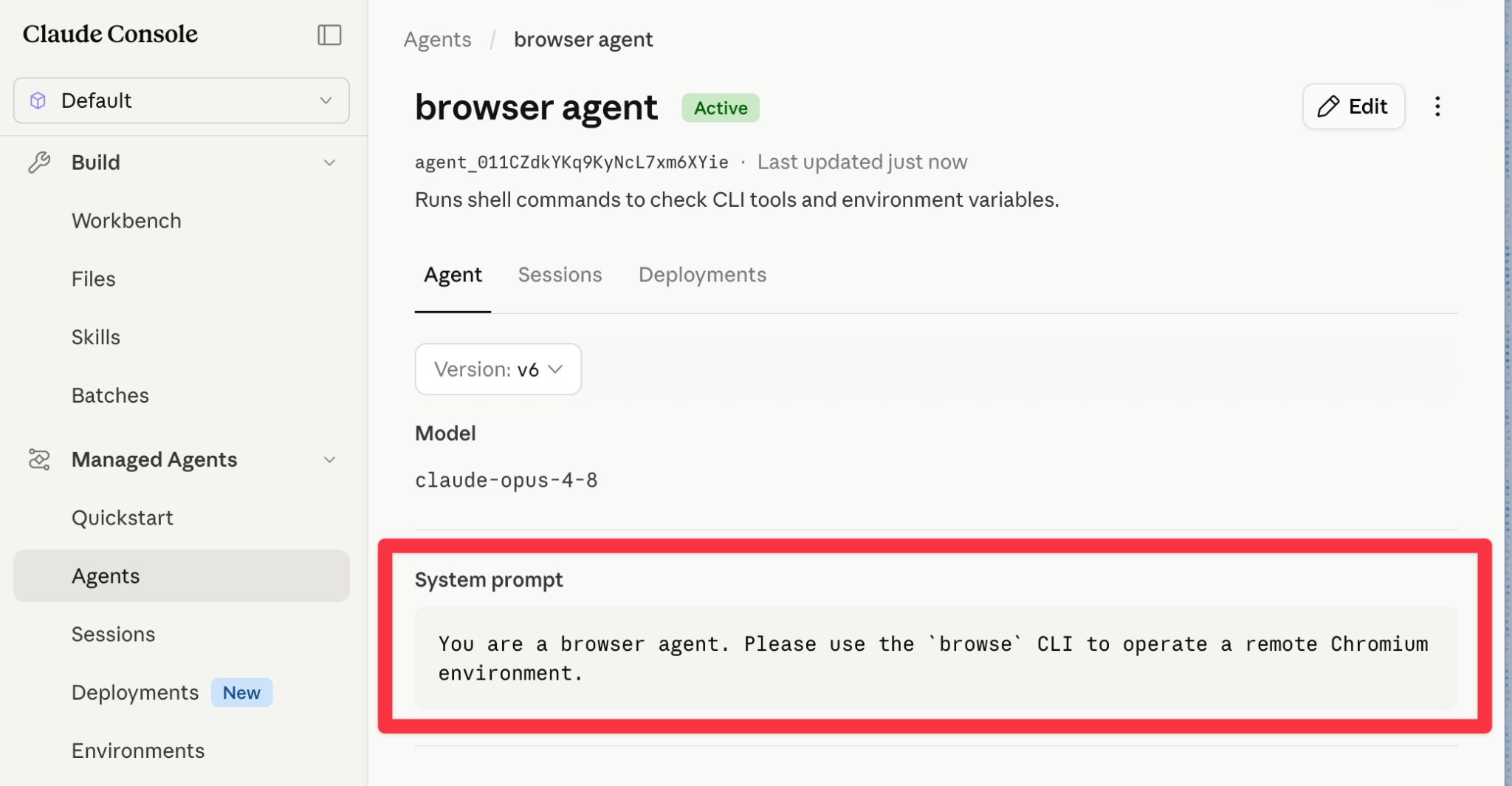
4. Start a session
Start a Managed Agents session, attach the environment and vault, then ask the agent to complete a browser task such as:- Anthropic Console
- CLI
- SDK
Start a session from the Anthropic Console with the agent, environment, and Browserbase credential vault you created.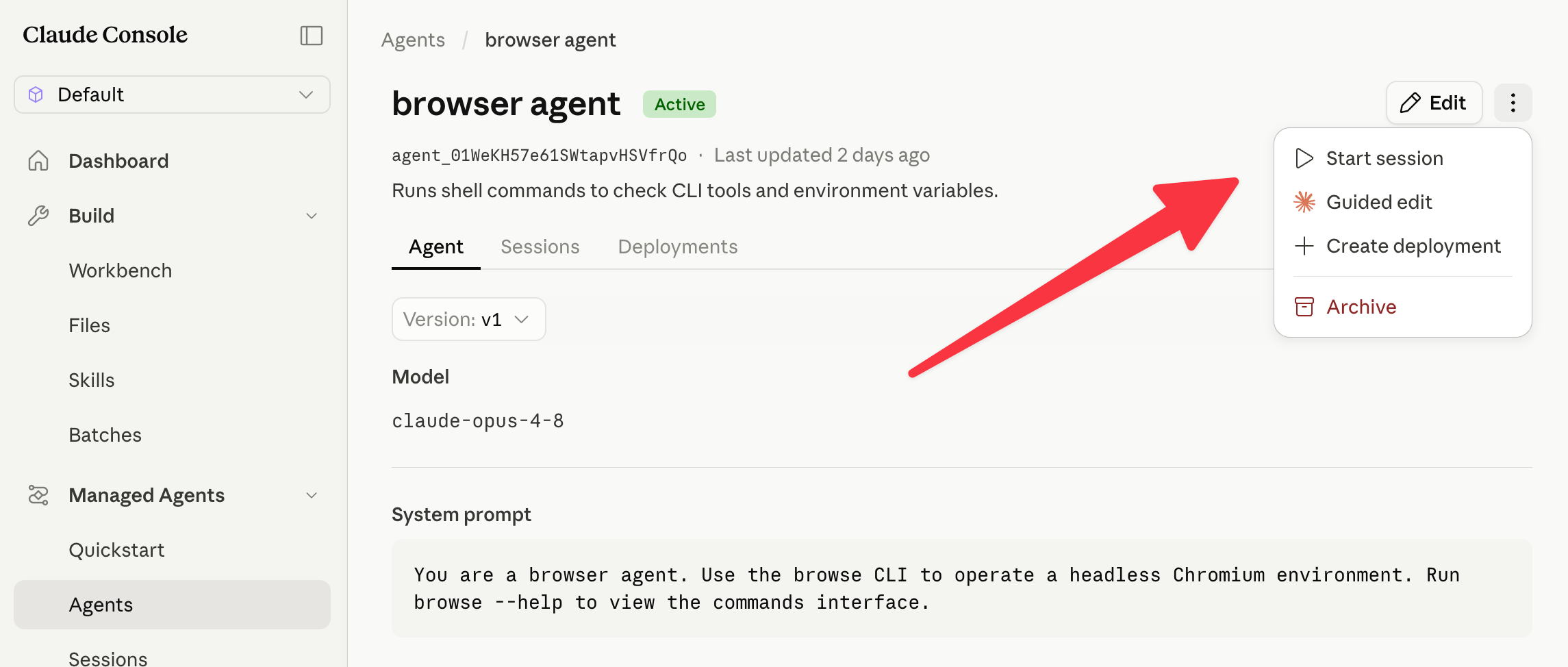
5. Watch the browser session
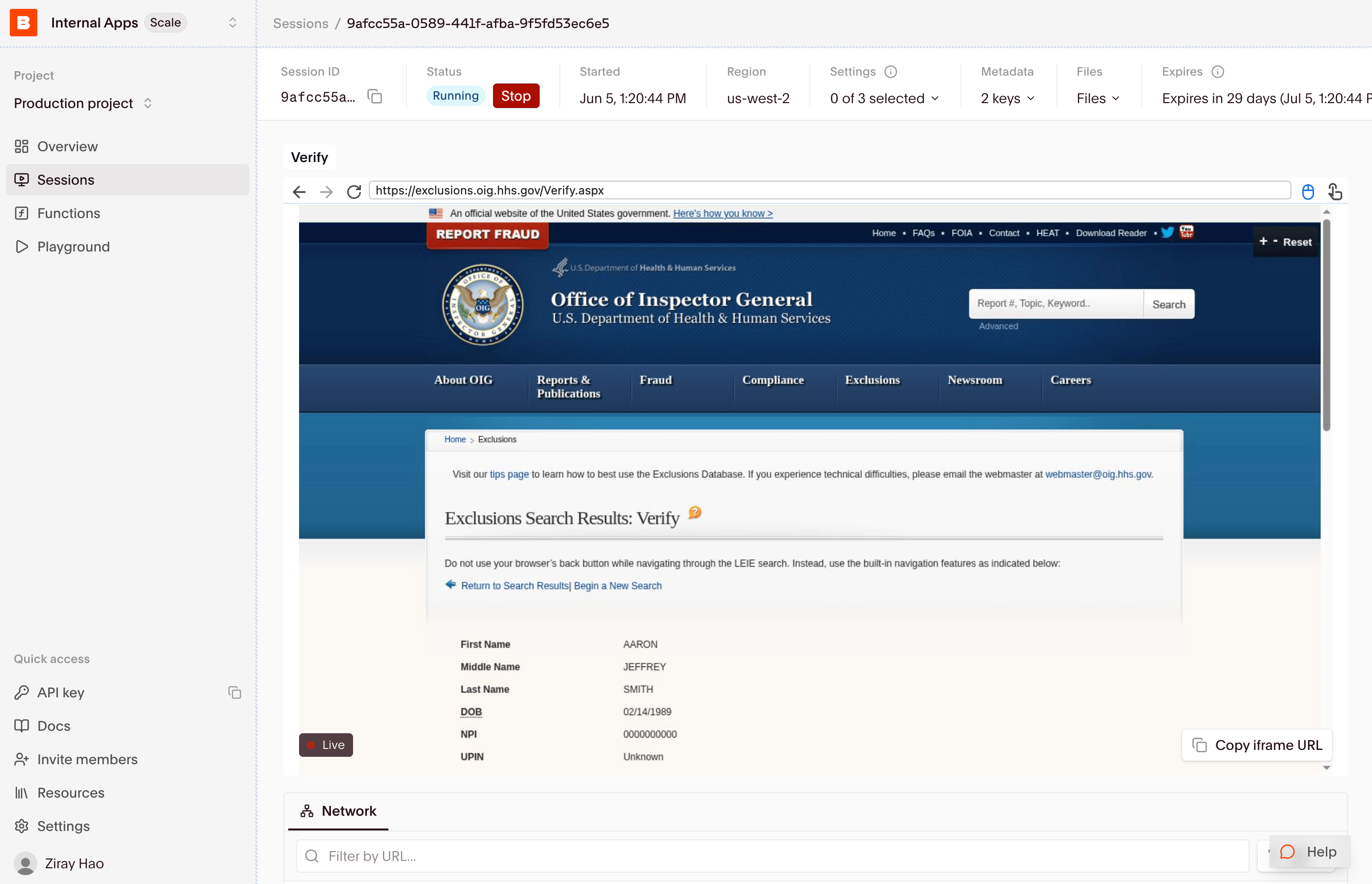
When the Managed Agent uses Browserbase throughbrowse, the browser session appears in the Browserbase sessions panel. Open the session to watch Live View, inspect logs, and review the recording after the run.
Expected output
The event stream shows agent messages and tool calls. The SDK example printsAgent finished. when the session becomes idle. Review the agent response and browser recording to confirm whether it found the product and added it to the cart; an idle session alone does not prove the task succeeded.
Cleanup
Ask the agent to close its Browserbase session, then end the Managed Agents session in the Anthropic Console. Remove the Browserbase credential from the tutorial vault when you no longer need the integration. An idle agent is not proof that its browser session has ended.Tips
The agent is not sure how to use browse.
The agent is not sure how to use browse.
Ask it to run
browse --help first. The CLI is designed for progressive disclosure, so the agent can inspect available commands before acting.The agent cannot create Browserbase sessions.
The agent cannot create Browserbase sessions.
Confirm the credential vault exposes
BROWSERBASE_API_KEY to the environment, and make sure the vault networking allows *.browserbase.com.The agent needs to reach the open web.
The agent needs to reach the open web.
Use Unrestricted networking on the environment. Use Limited networking only when you know the exact hostnames the agent needs.
You want to debug what happened.
You want to debug what happened.
Use Browserbase Live View while the session is running, then use the session replay and logs in the Browserbase dashboard after it finishes.
Related guides
Live session view
Inspect a browser while your workflow runs.
Agent Identity
Understand identity and access for browser automation.